 Navidium
What this app does
Navidium Shipping Protection lets your shoppers add cover for loss, theft or damage in transit, and gives you the tools to settle the claims that follow.
- A widget on your cart and checkout offers the cover.
- Accepting it adds a fee to the BigCommerce checkout — a real order-level fee, not a hidden product in your catalogue. It appears on the order like shipping or tax does.
- Protected orders are tracked in the app, and your customers file claims through a claims portal you link from your store.
- You resolve each claim with a refund, a replacement order, store credit, or a denial, and the app carries the action out in BigCommerce.
The fee is yours to keep, so protection is revenue that offsets what claims cost you. The dashboard shows both figures side by side.
Installing and getting started
Install the app from the BigCommerce App Marketplace and approve the permissions it asks for. Installation:
- registers the webhooks the app listens to,
- adds the widget script to your storefront,
- publishes your settings.
Installing does not change your storefront. The widget script is in place but switched off, so your cart and checkout look exactly as they did and no protection fee is added to anything. Nothing appears to shoppers until you turn the widget on yourself — see The kill switch below.
Open the app from Apps › Navidium Shipping Protection in your BigCommerce control panel. It runs inside the control panel; you never sign in separately.
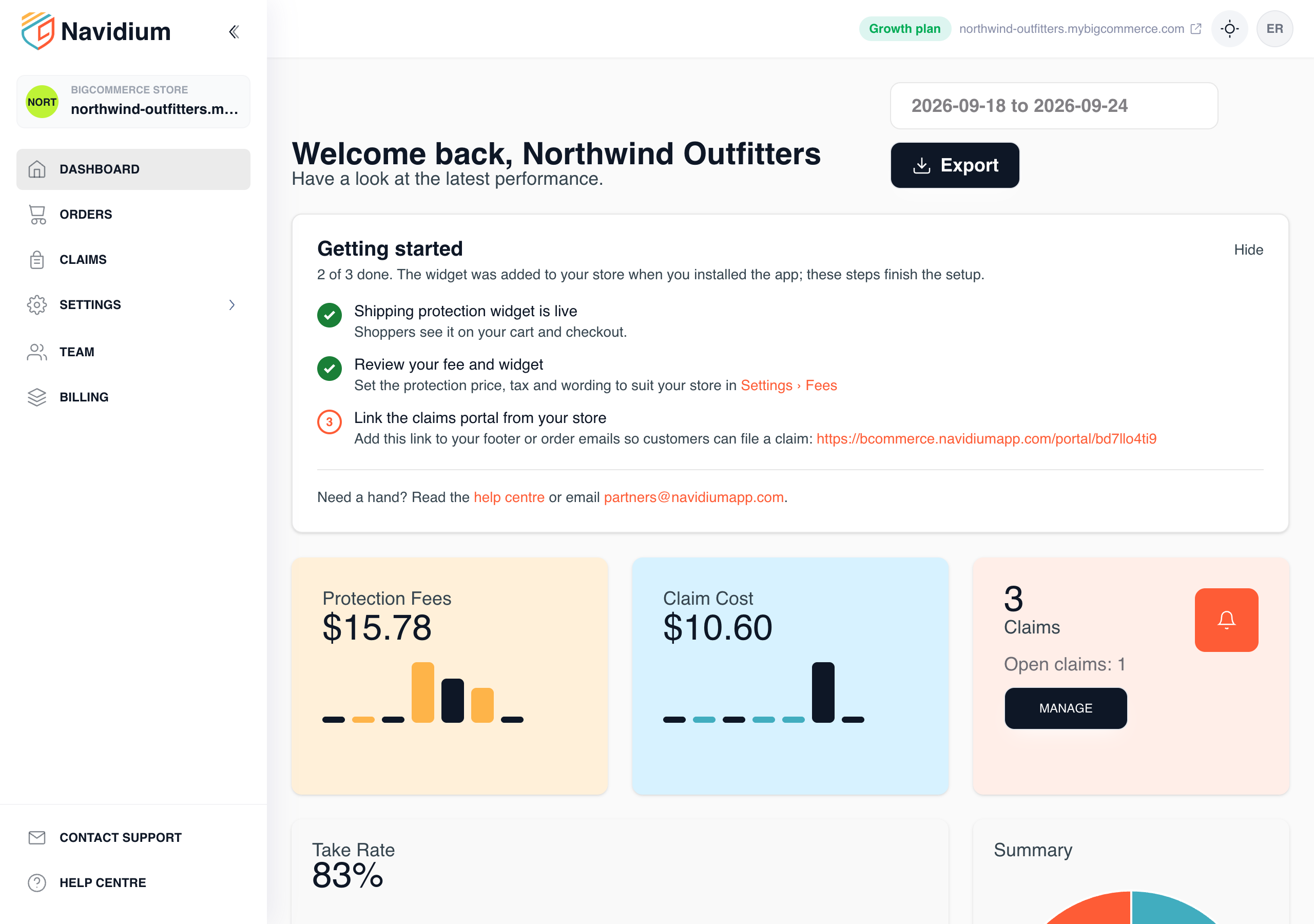
The dashboard shows a Getting started checklist:
- Turn on the shipping protection widget — the kill switch in Settings › Widget, the step that puts it in front of shoppers.
- Review your fee and widget — set the price and wording before shoppers see it.
- Link the claims portal from your store — add the portal link to your footer or order emails.
Hide the checklist once you are set up; it does not come back.
The widget and the fee
The kill switch
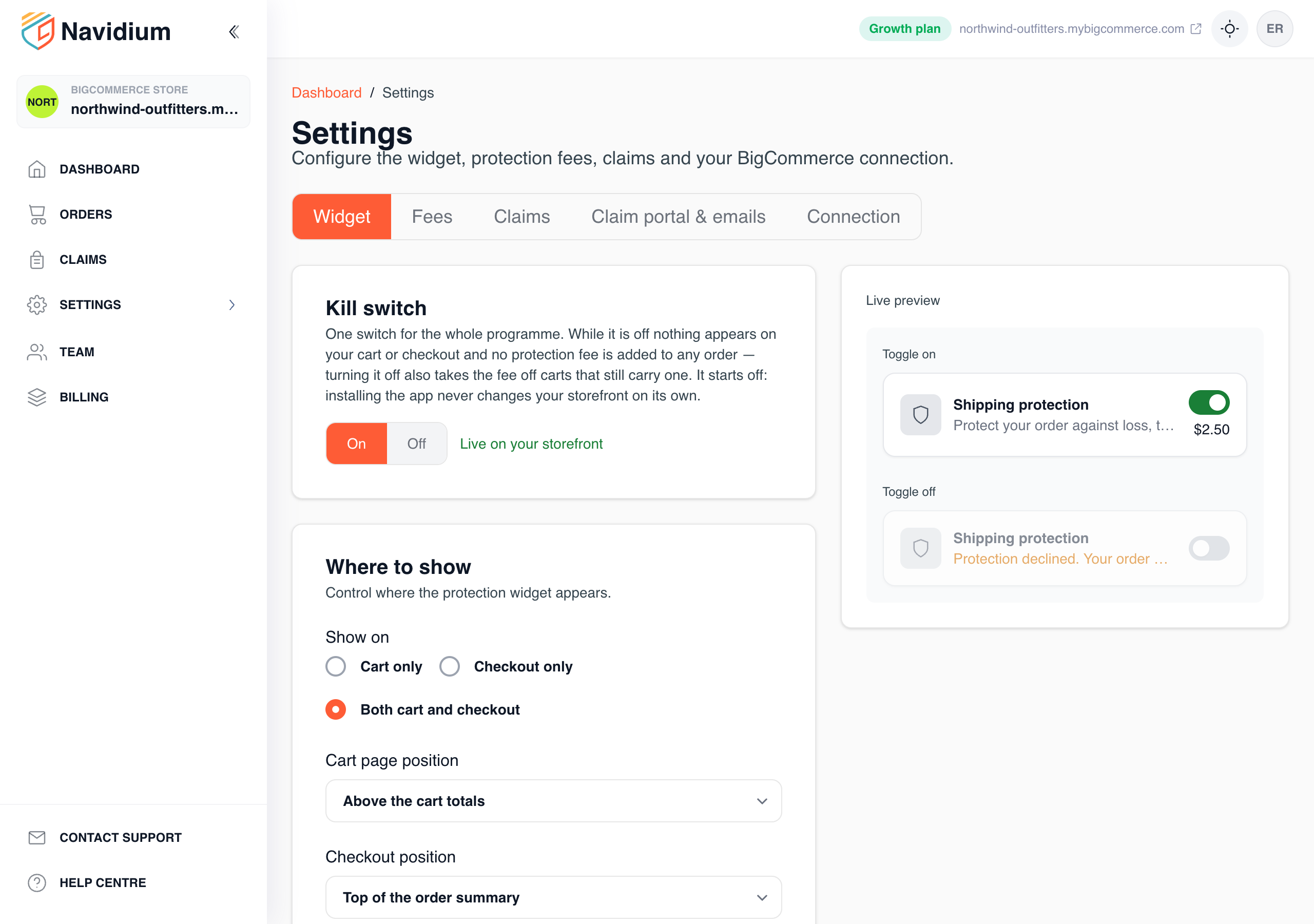
Settings › Widget opens with the kill switch — one control for the whole programme. It starts Off.
While it is off:
- nothing is rendered on your cart or checkout,
- no protection fee is added to any cart,
- carts that still carry the fee lose it on their next update.
Set it to On when the price and wording are how you want them, then save; shoppers see the widget immediately. Switch it to Off at any time to stop the programme dead — no code change, no uninstall, and your settings, orders and claims are all left as they are.
Making the widget your own
Still in Settings › Widget:
| Setting | What it does |
|---|---|
| Show on | Cart only, checkout only, or both |
| Position | Where the widget sits on each page; a CSS selector for custom themes |
| Template | Six layouts, previewed live with your own price and currency |
| Icon / image | Your own icon, or the default shield |
| Label and description | The wording shoppers read |
| Opt-out message | Shown when a shopper declines cover |
| Accent colour | Matches the widget to your theme |
The preview beside the settings uses your real fee and your store's currency, so what you see is what a shopper sees.
Setting the price
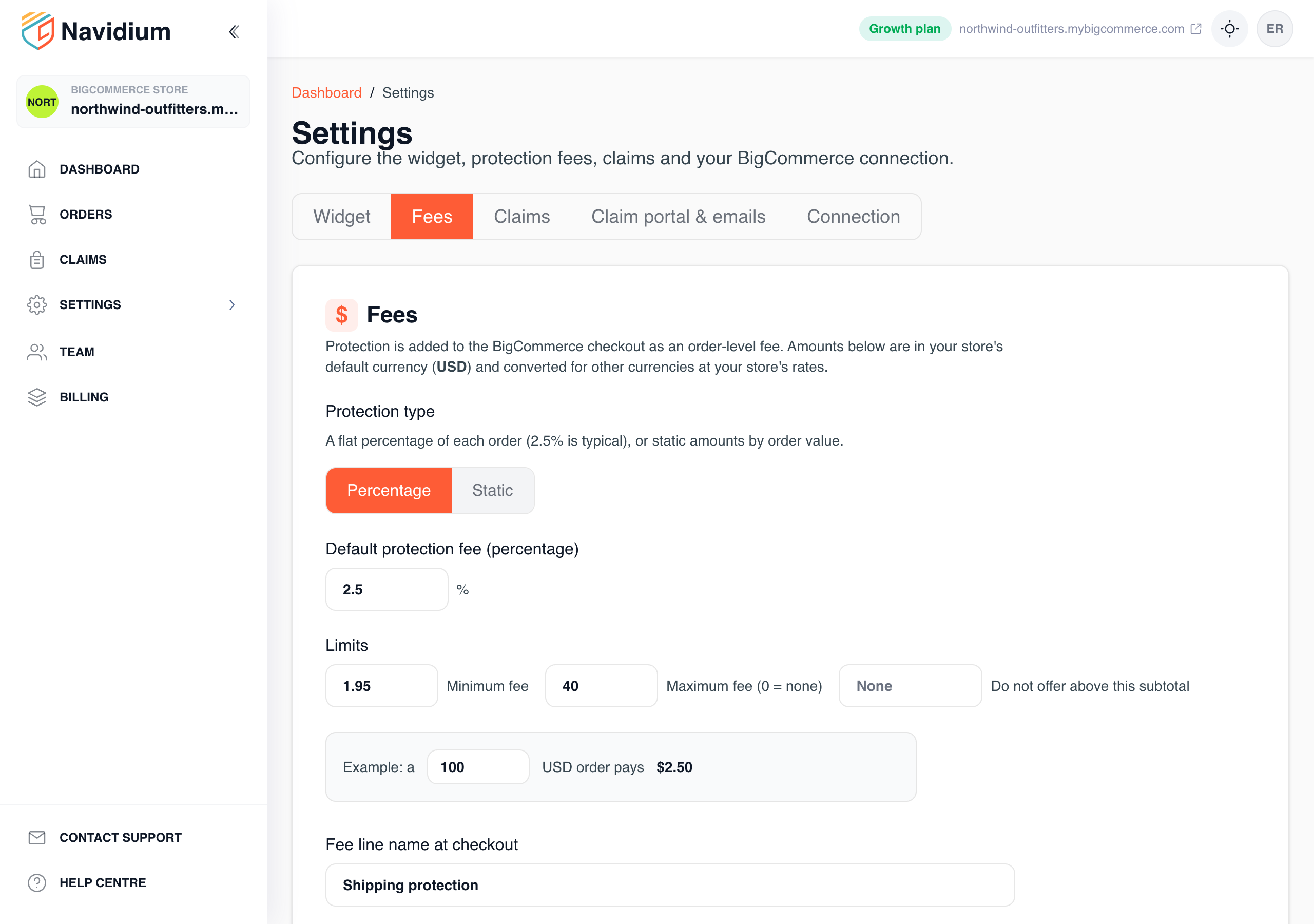
Settings › Fees decides what protection costs:
- Percentage of the cart subtotal, with a minimum and maximum. A 2% fee with a $0.99 minimum charges $0.99 on small carts and 2% on larger ones.
- Fixed tiers — a table of subtotal ranges, each with its own price.
- Maximum threshold — carts above this are not offered protection at all.
- Allow opt out — off means every cart is protected and the toggle is hidden.
- Auto opt in — whether the widget starts switched on for the shopper.
- Tax — treat the fee as taxable (optionally under a specific tax class) or non-taxable.
Prices are set in your store's default currency. On a multi-currency store the fee is converted with the same exchange rate BigCommerce uses, so a shopper browsing in another currency sees a sensible local price.
Orders
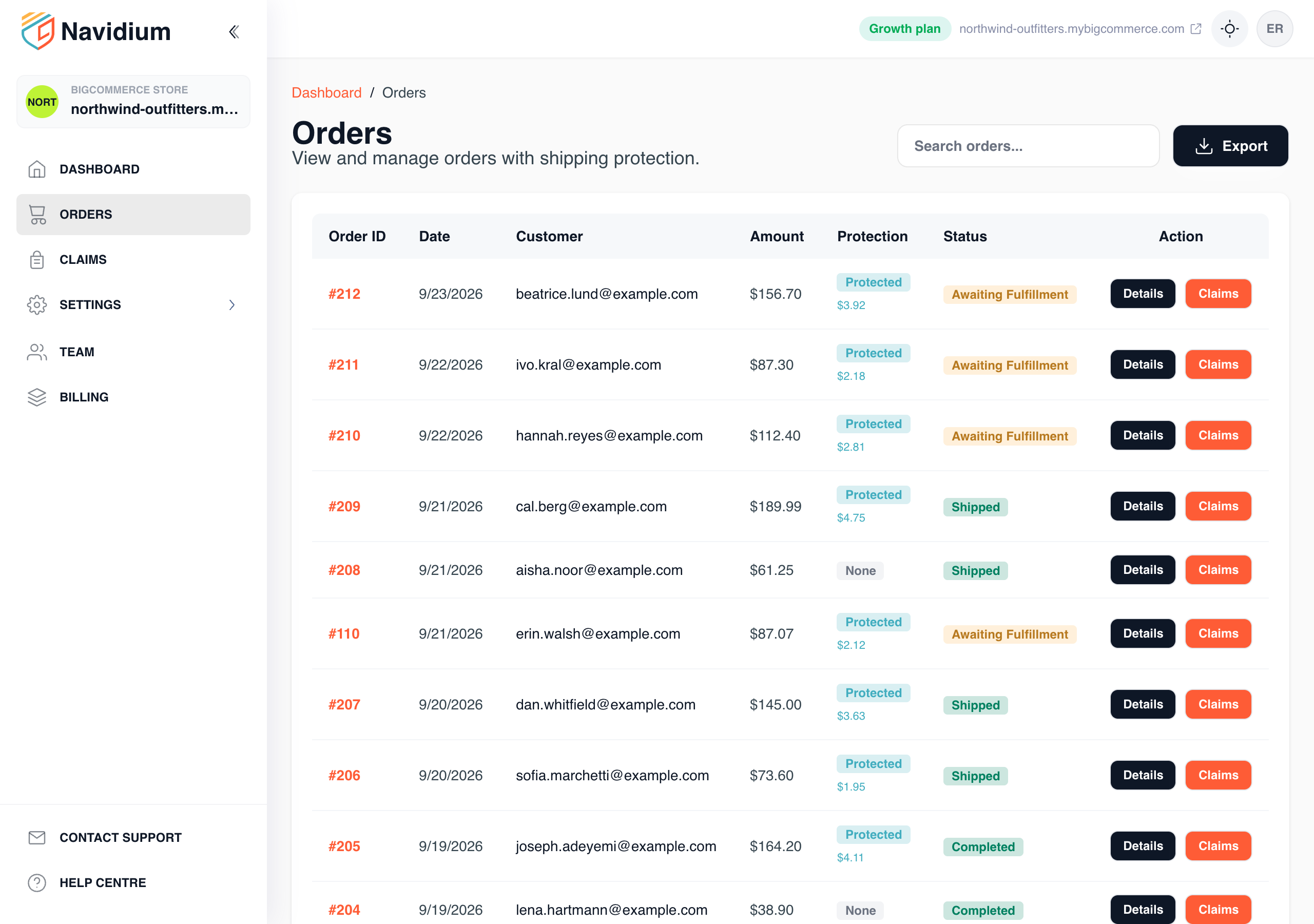
Orders lists every order the app has seen, with the protection fee on the ones that carry it. Each order links out to the BigCommerce order, and the Claims button files a claim against it on the customer's behalf.
Orders arrive by webhook within a minute of checkout; a reconciliation sweep every 30 minutes catches anything a webhook missed.
The claims portal
Your customers file claims at a link of your own:
https://bcommerce.navidiumapp.com/portal/<your-store-hash>
The exact link is in Settings › Claim portal & emails › Who can claim, ready to copy. Add it to your theme footer, your order confirmation emails, or your help pages.
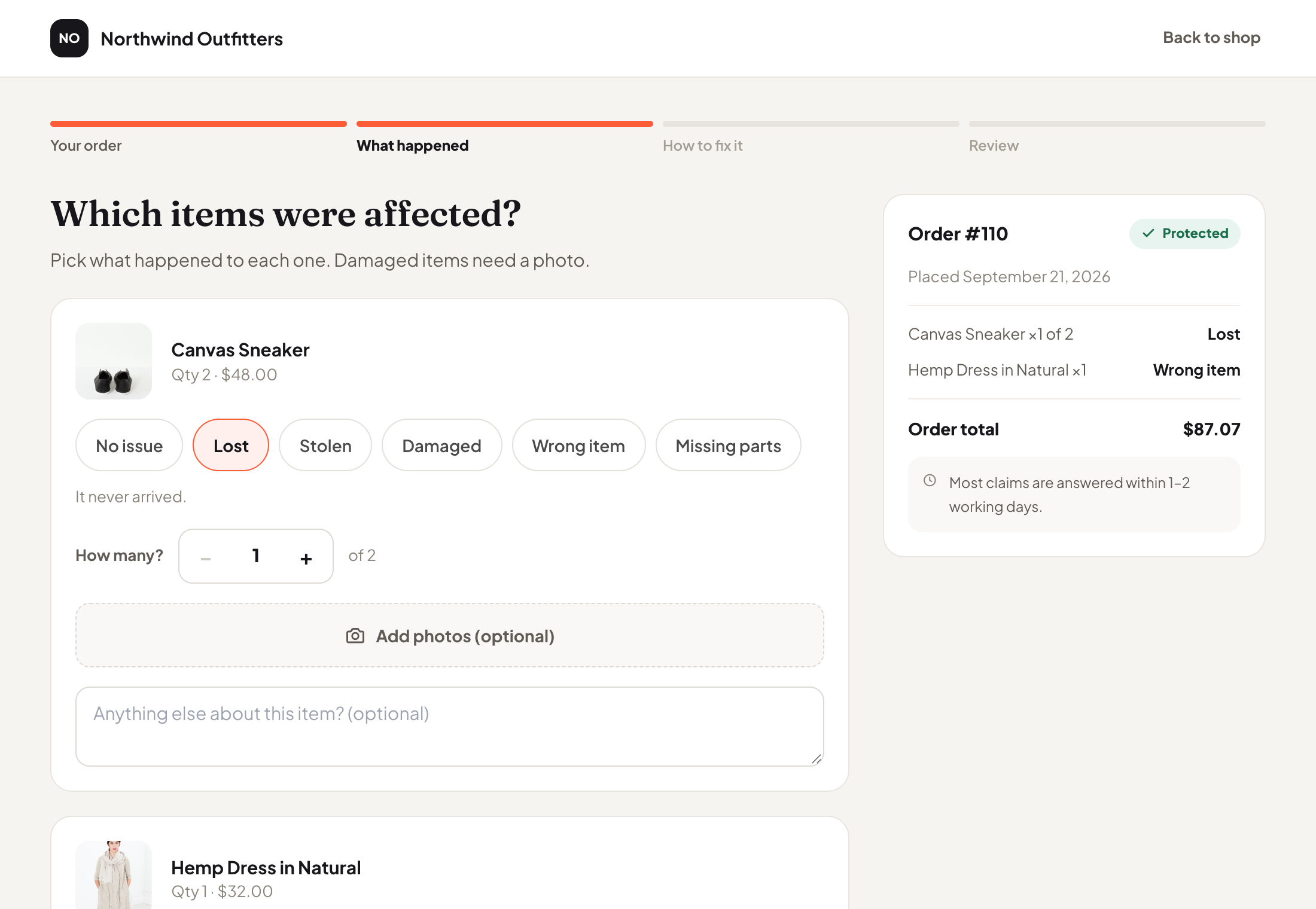
A customer goes through four steps — the same on a phone, a tablet or a laptop:
- Your order — the order number and the email on the order,
- What happened — for each affected item, with its product photo, what went wrong: lost, stolen, damaged, or any reason you add. When they bought more than one, they say how many were affected. Photos are required or optional depending on the reason,
- How to fix it — a replacement, a refund, store credit, or an option of your own, whichever you offer. For a replacement they can send it to a different address, choosing the country and state from your BigCommerce store's own lists,
- Review — a last check, then submit. They can check progress later with the same details.
On a phone the main button stays pinned to the bottom of the screen; on a larger screen a summary of the order sits beside each step.
Making the portal yours
Settings › Claim portal & emails is organised the way your customer moves through the portal. Pick a step on the left, change its wording and the settings that belong to it, and the preview on the right shows your real portal with the change in place — on desktop, tablet or phone. Nothing reaches customers until you press Save and publish; a dot marks every step with unpublished changes, and Discard puts everything back.
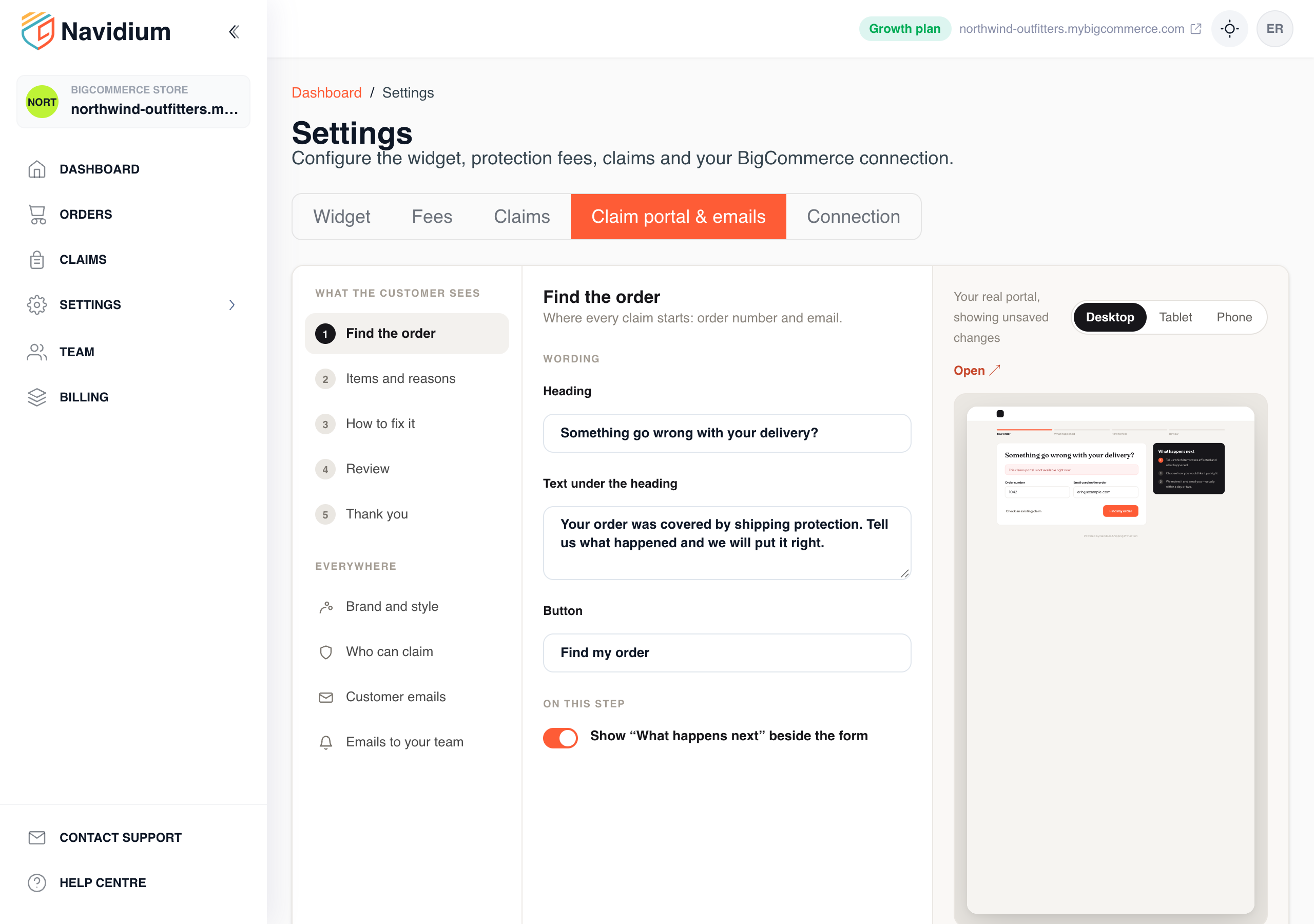
Under Everywhere:
- Brand and style — your logo, accent colour, square or rounded corners, and a serif or sans-serif heading. Button text turns white or dark automatically, whichever is easier to read on your colour.
- Who can claim — by default only orders that paid for protection can file; you can accept unprotected orders too.
- Customer emails and Emails to your team — see below.
Reasons
On Items and reasons you decide what a customer can say went wrong. Lost, stolen and damaged are there to start with; rename them, reorder them, switch any off, or Add a reason of your own — Wrong item, Missing parts, Arrived late. For each reason you choose whether a photo is required, and add a short hint the customer sees when they pick it. Up to 12 reasons; at least one must stay on.
Your own reasons can be removed. The stock three can only be switched off, so older claims filed with them still read correctly.
What customers can ask for
On How to fix it you set the options customers choose from: a replacement, a refund and store credit, each with your own name and description, plus up to five options of your own — Swap for another size, Repair it. An option you add tells you what the customer would like; you settle the claim with whichever action fits. You can resolve any claim any way you like from the claim itself.
The same step has Let customers change the delivery address. When it is on (the default), a customer who asks for a replacement can send it to a new address; when it is off, replacements always go to the order's address.
Customer emails
Customers hear from your store at every step of their claim:
| Sent when | |
|---|---|
| Claim received | They file a claim in your portal |
| Refund issued | You resolve a claim with a refund |
| Replacement sent | You send a replacement |
| Store credit issued | You issue store credit, with the code |
| Claim not approved | You deny a claim and choose to tell them |
Each one is yours to rewrite — subject, heading, message and button — and can be
switched off on its own, or all at once. Put variables in the text and they
are filled in when the email is sent: {{ customer_first_name }},
{{ order_number }}, {{ amount }}, {{ credit_code }} and others; the editor
lists the ones each email can use, and warns you about any it does not
recognise. The preview uses sample values; Send a test to me puts the real
thing in your inbox.
Emails show your store's name as the sender and replies go to you — to the address you set in Replies go to, or the store owner's. They carry your logo at the top: the one set in Brand and style, or else the logo you uploaded to BigCommerce.
Emails to your team
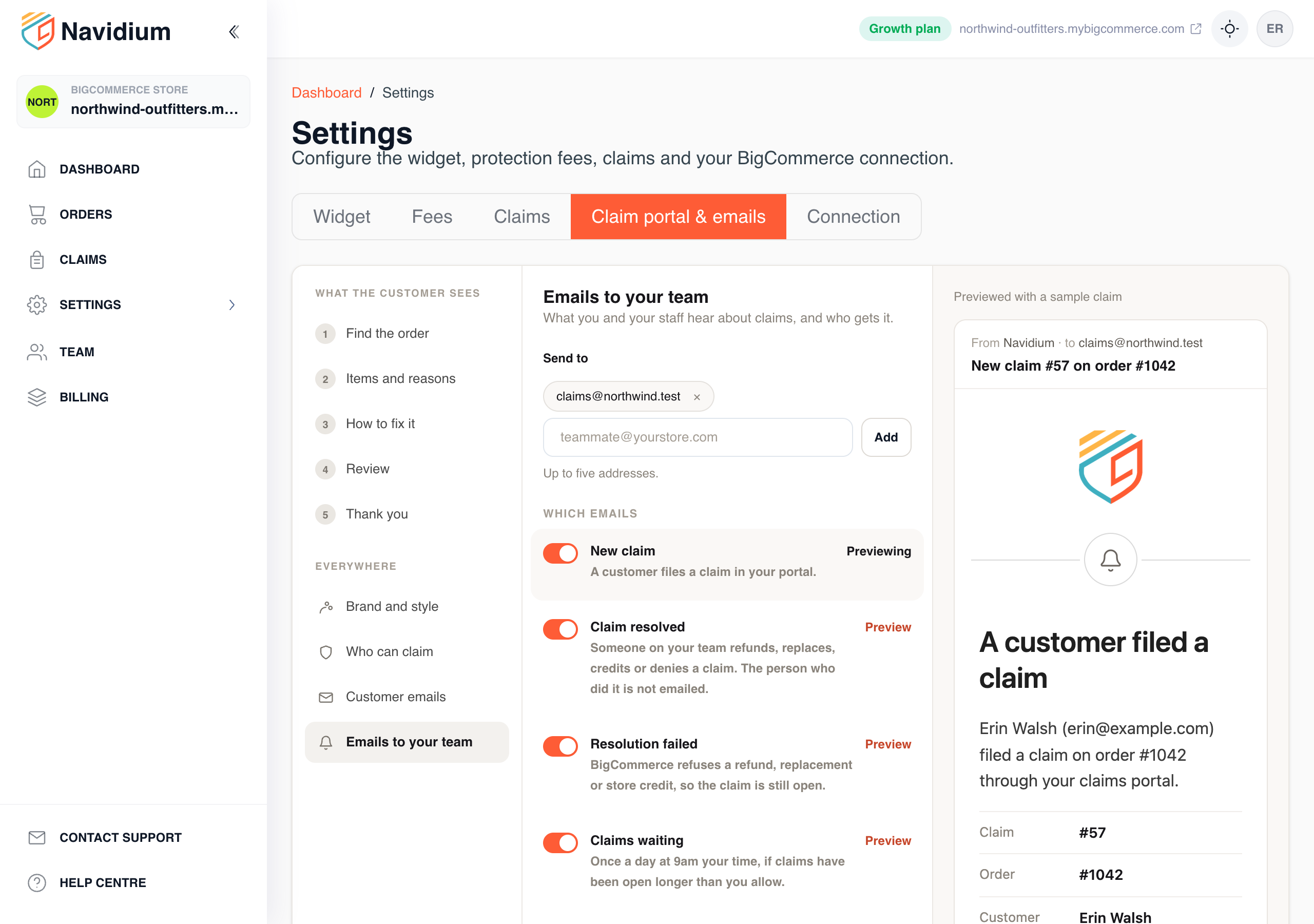
Settings › Claim portal & emails › Emails to your team decides what you and your staff hear about claims:
| Sent when | Starts | |
|---|---|---|
| New claim | A customer files a claim in your portal | On |
| Claim resolved | Someone on your team refunds, replaces, credits or denies a claim | Off |
| Resolution failed | BigCommerce refuses a refund, replacement or store credit | On |
| Claims waiting | Once a day at 9am in your store's time zone, when claims have been open longer than you allow (2 days unless you change it) | On |
Send to takes up to five addresses — a shared inbox works well. With none, the emails go to the store owner. Whoever resolved a claim, or tried to, is left off that email: they already know. Each email has a Preview with a sample claim and a Send to me test.
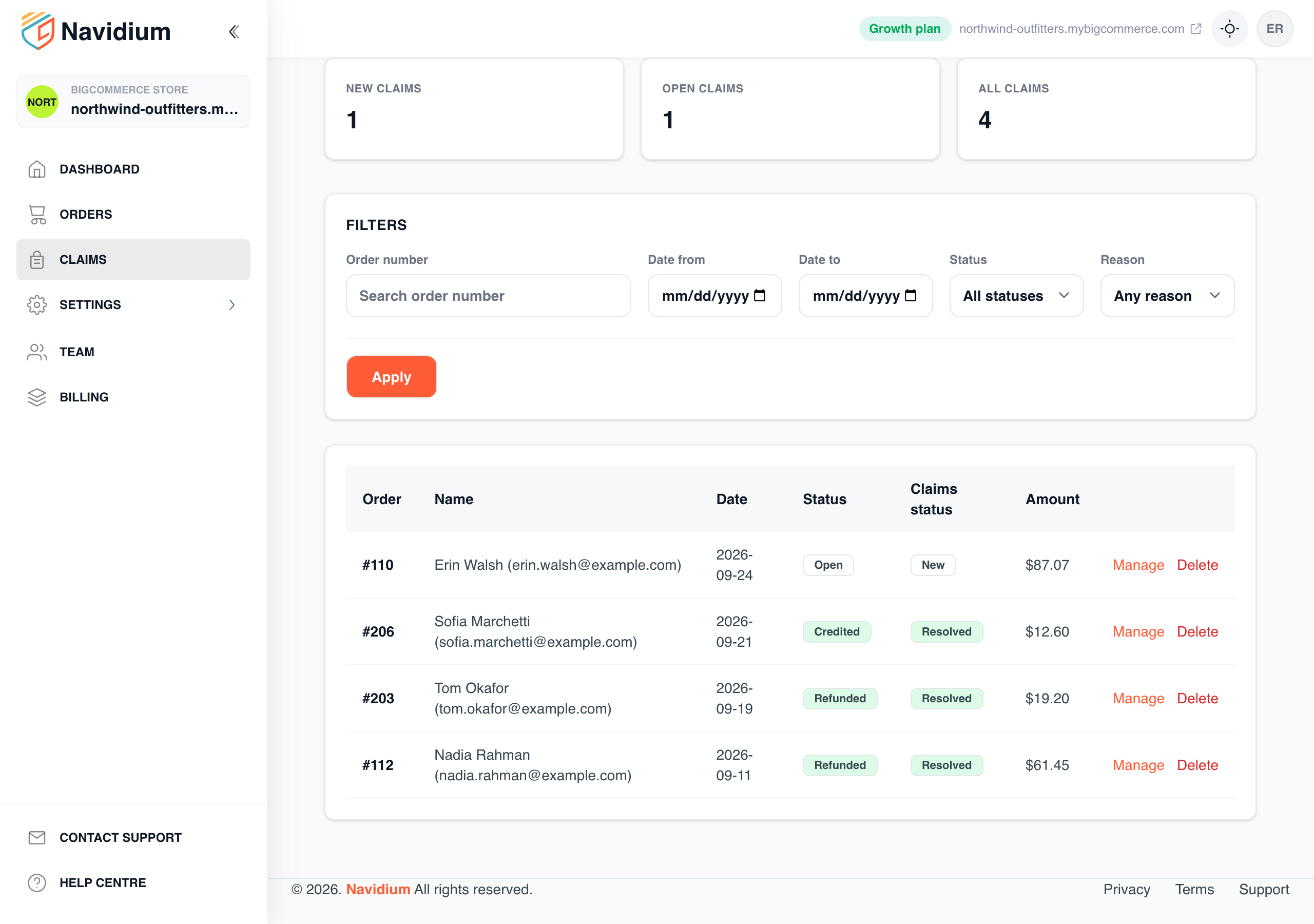
Handling a claim
Open a claim from Claims and pick an action.
Refund
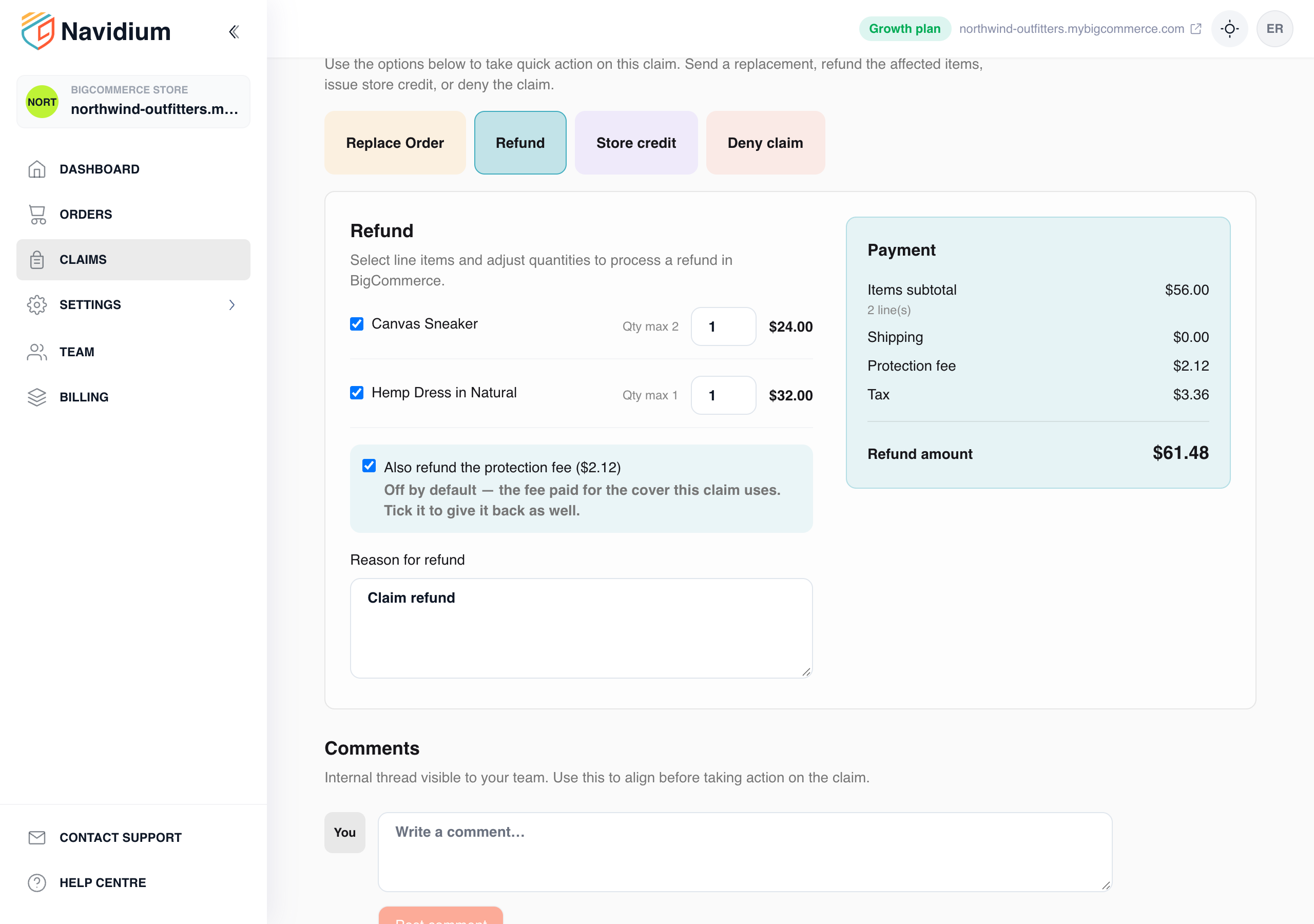
Select the affected lines and quantities. The panel totals what BigCommerce will return, including the tax on those items, and refunds it to the original payment method where the gateway supports it — otherwise BigCommerce records the refund and tells you to pay the customer back yourself.
Also refund the protection fee. Beneath the lines is a tick box for the protection fee, and it is off by default: that fee bought the cover the customer is now claiming on, so keeping it is the usual choice. Tick it when you would rather return it as a goodwill gesture, and the amount is added to the refund total before anything is sent. You can also refund the fee on its own, without any products.
Replacement
Re-ship the affected items at no charge. The app creates a new BigCommerce order with zero prices and a note tying it to the claim. It starts in Awaiting Fulfillment unless you choose another status in Settings › Claims.
It goes to the address the customer gave in the portal — the claim says so when it differs from the order's — or to the order's own address. Edit changes it, with the same country and state lists the customer used.
Refund and replacement both start at the quantity the customer claimed — one of the two mugs, say — and you can change it before you confirm.
Store credit
Issue the value as a gift certificate (the default) or as a single-use coupon code, set in Settings › Claims. The code is shown on the claim and emailed to the customer.
Deny
Record why, and optionally tell the customer.
Whatever you choose, the claim closes with a summary of what it cost you, the reference BigCommerce gave back, and a full activity trail. Internal comments on each claim are visible to your team only — customers never see them.
Your team
Everyone who can open the app is a BigCommerce control-panel user of your store; there are no separate passwords. Team lists them and sets what each can do:
| Role | Can do |
|---|---|
| Owner | Everything, including billing |
| Admin | Everything except billing |
| Manager | Claims and settings, no billing |
| Analyst | Read everything, export |
| Viewer | Read only |
The store owner is always an owner and cannot be locked out. Removing a user in BigCommerce removes their access here.
Billing
| Plan | Price | Orders |
|---|---|---|
| Essential | $29.99 / month | up to 500 a month |
| Growth | $49.99 / month | up to 1,000 a month |
| Enterprise | $99.99 / month | unlimited |
Every plan starts with a 14-day free trial. You add a card when you choose the plan, but nothing is charged until the trial ends; cancel before then and you pay nothing. Billing counts down the days left. The trial is once per store — a store that has paid before, or reinstalls, starts straight on the plan.
Billing shows your plan, its status and your next invoice, and opens the payment portal for card changes, invoices and cancellation.
If a subscription lapses, the widget stops offering protection until payment resumes — existing orders, claims and settings are untouched.
If something looks wrong
The widget is not on my storefront. Check the kill switch at the top of Settings › Widget is On. It is off until you turn it on, including right after installing.
The widget is on but nothing appears. Open Settings › Connection. It shows whether the widget is on your storefront, whether order updates are arriving and when your settings were last published; Repair connection puts back anything missing. Also confirm billing is active, and that the cart subtotal is under any maximum threshold you set. If you write to us, open Details for support there and use Copy details — it tells us most of what we would ask.
A price looks wrong in another currency. Fees are set in your default currency and converted with BigCommerce's own exchange rates. Update the rate in BigCommerce and the widget follows within a few minutes.
A refund would not go through. Some payment providers cannot be refunded through the API. The claim stays open and shows the reason, and your team gets a Resolution failed email; refund from your provider's own dashboard, then resolve the claim.
Nobody got the new-claim email. Check Emails to your team: that New claim is on and the addresses in Send to are right. With no addresses it goes to the store owner's BigCommerce email.
An order is missing. Open the order in the app and use Sync, or wait for the half-hourly reconciliation.
Uninstalling
Uninstall from BigCommerce. The app removes its script and webhooks, cancels your subscription, and stops touching your store. Your data is kept for 90 days in case you come back, then deleted.
Emails from us
Besides the emails about claims (see Emails to your team), we write to the store owner twice:
- when you install the app — what to do next to go live,
- when you uninstall — what stopped, and how long your data is kept.
Emails about your account come from Navidium, and replies reach our support team.
Getting help
Open Contact support in the app's sidebar. Your store's address and your email are filled in; tell us what is happening and attach a screenshot if it helps. Your store's details — plan, widget state, app version — go with it, so our first reply can be an answer rather than a question. It works even if your billing needs attention.
- This guide online: https://bcommerce.navidiumapp.com/guide
- Email: partners@navidiumapp.com